How to set up a Google Business Profile in 9 steps (UK guide)
The nine steps to set up a Google Business Profile properly, with Google's own limits for names, service areas, photos and verification, written for UK small businesses.
By GP 16 minute read
TL;DR: To set up a Google Business Profile, go to business.google.com/add, enter your business name exactly as customers see it, choose the most specific primary category, say whether customers visit you, add your phone and website, then verify, usually by a short video. It is free, and Google reviews a verification video in up to five working days.
Key takeaways
- A Google Business Profile is free, and Google says there is no way to pay for a better local ranking.
- Your business name must match the name customers see on your sign, with no keywords, taglines or locations added.
- Service-area businesses hide their address and can list up to 20 service areas within about two hours’ drive.
- Video verification needs one continuous recording of at least 30 seconds, made live on a phone.
- Google reviews a verification video in up to five working days, and postcard codes expire after 30 days.
What is a Google Business Profile?
A Google Business Profile is the free listing that shows your business on Google Search and Google Maps, with your name, category, hours, phone number, photos and reviews. For most local businesses it is the first thing a customer sees, often before they ever reach the website.
Google used to call it Google My Business, and you will still see that name in older guides. The product is the same: a profile you control, linked to a Google account, that Google uses to decide when to show you to people searching nearby. Adding one costs nothing. The Google help page on adding or claiming a Business Profile states plainly that you can add or claim your business at no charge.
The profile matters because of how local results work. Google’s own explanation of how local ranking works says local results are mainly based on relevance, distance and prominence, and that businesses with complete and accurate information are more likely to show up. A half-finished Google Business Profile loses to a complete one, even when the business behind it is better.
What do you need before you set up a Google Business Profile?
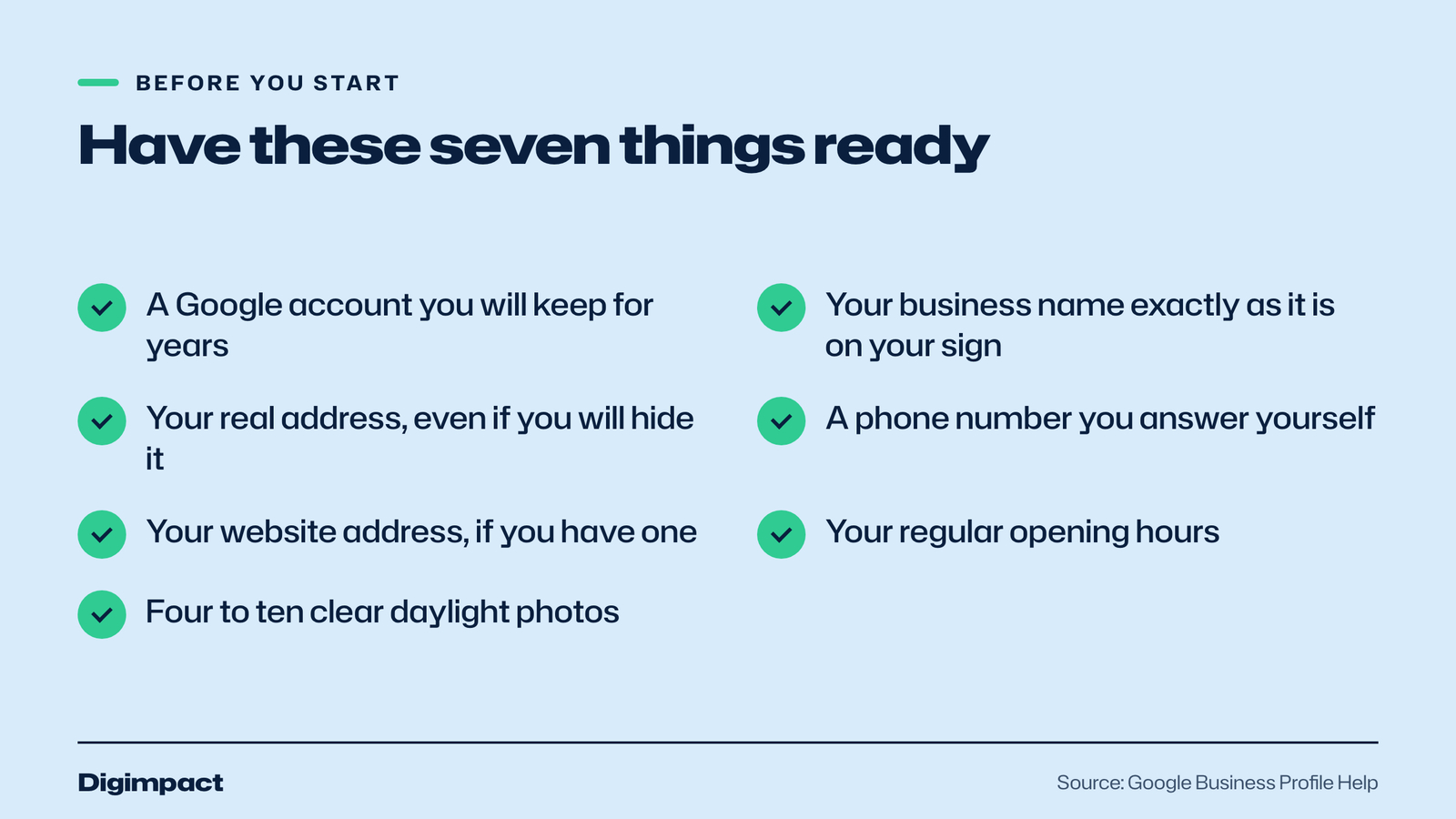
Before you start your Google Business Profile, have five things ready: a Google account you will keep, your business name exactly as it appears on your sign or invoices, your main phone number, your business address (even if you will hide it), and a clear idea of what customers come to you for. With those ready, the setup takes about 15 minutes.
Here is the full list to prepare:
- A Google account you control. Use the account you will still have in five years, not a staff member’s personal Gmail. Ownership can be transferred later, but it is easier to start right.
- Your real business name. The name on your shopfront, van, website and invoices. Write it down exactly.
- Your address. Google uses it for verification even if customers never visit, so it must be a real place where the business operates. PO boxes are not accepted.
- A phone number you answer. Google’s guidelines ask for a number that connects to your location and is under your direct control.
- Your website address. If you do not have a website yet, you can still create the profile and add the website later.
- Opening hours. Your regular customer-facing hours, plus any bank holiday changes you already know about.
- Four to ten good photos. The front of your premises, your work, your team at work and your products or menu.
How do you set up a Google Business Profile, step by step?
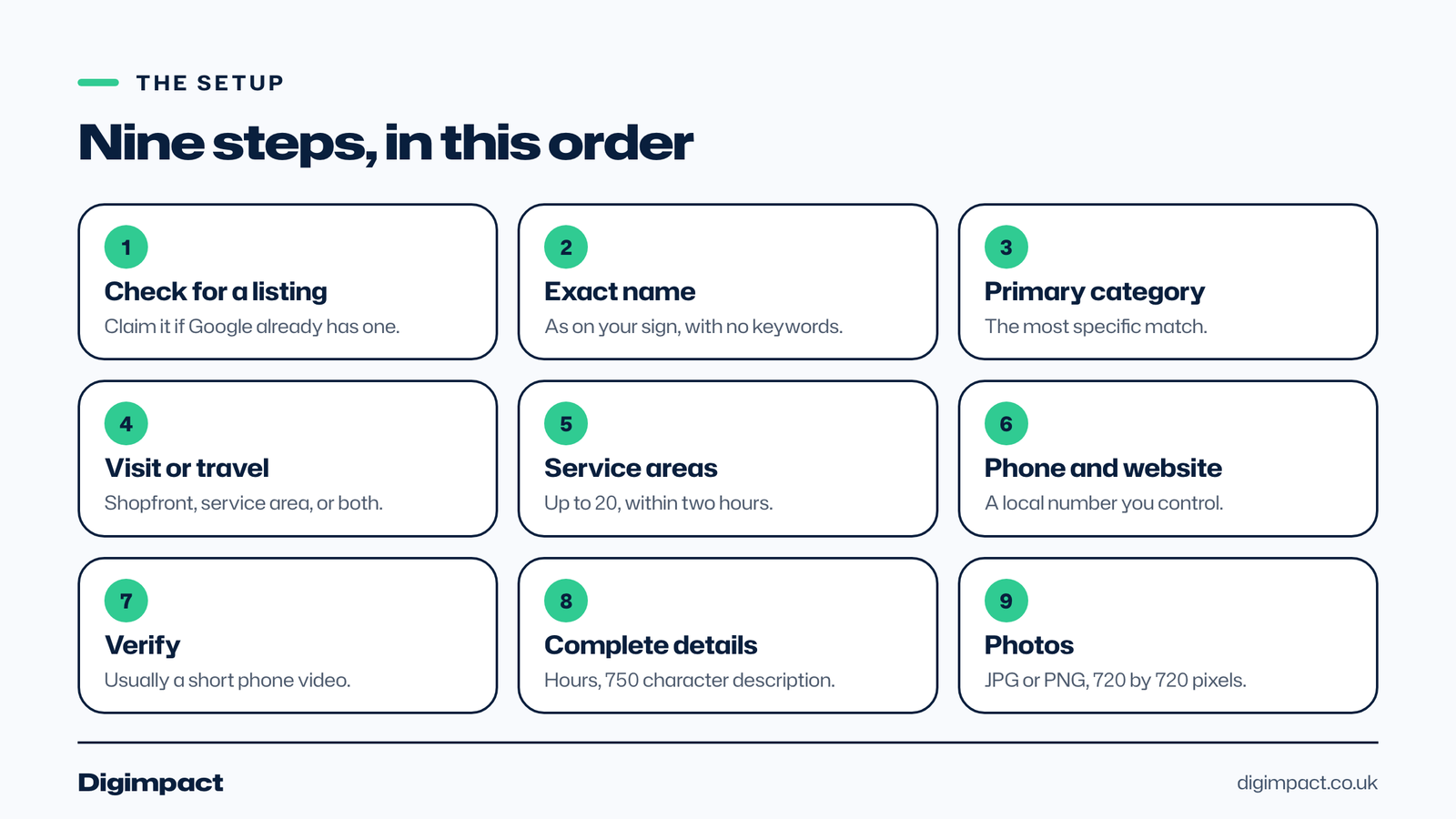
You set up a Google Business Profile in nine steps: check for an existing listing, enter your exact name, choose a primary category, say whether customers visit you, add service areas if you travel, add your phone and website, verify, complete the details, and add photos. The order matters, because some details lock while verification is pending.
Step 1: Check whether a profile already exists
Search Google Maps for your business name and town before you create a Google Business Profile. Google may already have a listing built from public information, a previous owner or an old employee. If one exists, claim it instead of creating a second one. Google’s guidelines for representing your business say not to create more than one page for each location, and duplicates are a common reason profiles get flagged.
Step 2: Enter your business name exactly as customers see it
Go to business.google.com/add and type your business name. This is where most new profiles go wrong. The name must be your real-world name, the one on your sign. Google’s guidelines rule out marketing taglines, phone numbers, web addresses, opening hours and service or location details in the name.
So a hair salon called Bloom must be listed as Bloom, not as Bloom Hair Salon Southsea Best Balayage. Adding keywords to the name may give a short boost, but it is one of the fastest ways to get a profile suspended, and the boost disappears when Google edits the name back.
Step 3: Choose the most specific primary category
Google then asks for a business category. Type a word and pick the closest match from the list. Choose the most specific category that describes your whole business, such as Italian restaurant rather than Restaurant, or Electrician rather than Contractor.
The category carries real weight. Google’s help page on business categories says the categories you select affect your local ranking on Google. You can add additional categories after setup, but Google asks you to use as few as possible and not to add a category for every product or service.
Step 4: Say whether customers visit you
Google asks whether you want to add a location customers can visit. Say yes if people come to you: a shop, cafe, salon, clinic, gym or office with a reception. Say no if you go to them: plumbers, cleaners, mobile hairdressers, photographers and most trades.
If you say no, you become a service-area business. Your address is still used for verification, but it is hidden from customers. Google’s guidelines say that if you are a service-area business you should hide your business address from customers. A business that has a shopfront and also travels can be both. Your Google Maps listing then shows the area you cover rather than a pin on your house.
Step 5: Add your service areas
If you travel to customers, add the towns, cities or postcode areas you cover. Google’s page on managing your service area says you can have up to 20 service areas, and that the boundaries should not be more than about two hours of driving time from where your business is based.
Pick the places you genuinely want work from. Twenty areas spread across three counties will not help you rank in all of them. Distance from the searcher is one of the three ranking factors, so your strongest area will always be close to your base.
Step 6: Add your phone number and website
Enter a phone number that reaches your business directly, because customers will tap it straight from your Google Business Profile. Google’s guidelines ask for a local number where possible rather than a central call centre number, and they rule out premium rate numbers entirely.
For the website, link to the page that best matches the profile. A single-location business can use its homepage. A business with several branches should link each profile to that branch’s page. Do not link to a page that redirects somewhere else, because Google’s guidelines rule out URLs that refer people to other landing pages.
Step 7: Verify your business
Verification proves to Google that you run the business. Until it is complete, your Google Business Profile will not show properly in Search and Maps. Google offers different methods to different businesses, and you only see your options once you reach this step. The next section covers each method in detail.
Step 8: Complete hours, description and services
Once you are in, open Edit profile and fill in every section of your Google Business Profile that applies to you. Add your regular opening hours and any special hours. Write a description of what you do, who you do it for and where. Google’s help page on editing your profile says not to exceed 750 characters in the description and not to include links or HTML.
Add your services or menu, the attributes that apply (such as wheelchair access or women-led), and your booking link if you take bookings online. Every complete section is a small signal that the profile is accurate and maintained.
Step 9: Add photos that pass Google’s checks
Photos are the part of a Google Business Profile that customers look at most. Google’s photo guidelines ask for JPG or PNG files between 10 KB and 5 MB, recommend 720 by 720 pixels, and say photos should be in focus, well lit and without heavy filters. Add an exterior photo so people recognise you when they arrive, then photos of your work, your team and your products.
How does Google Business Profile verification work in 2026?
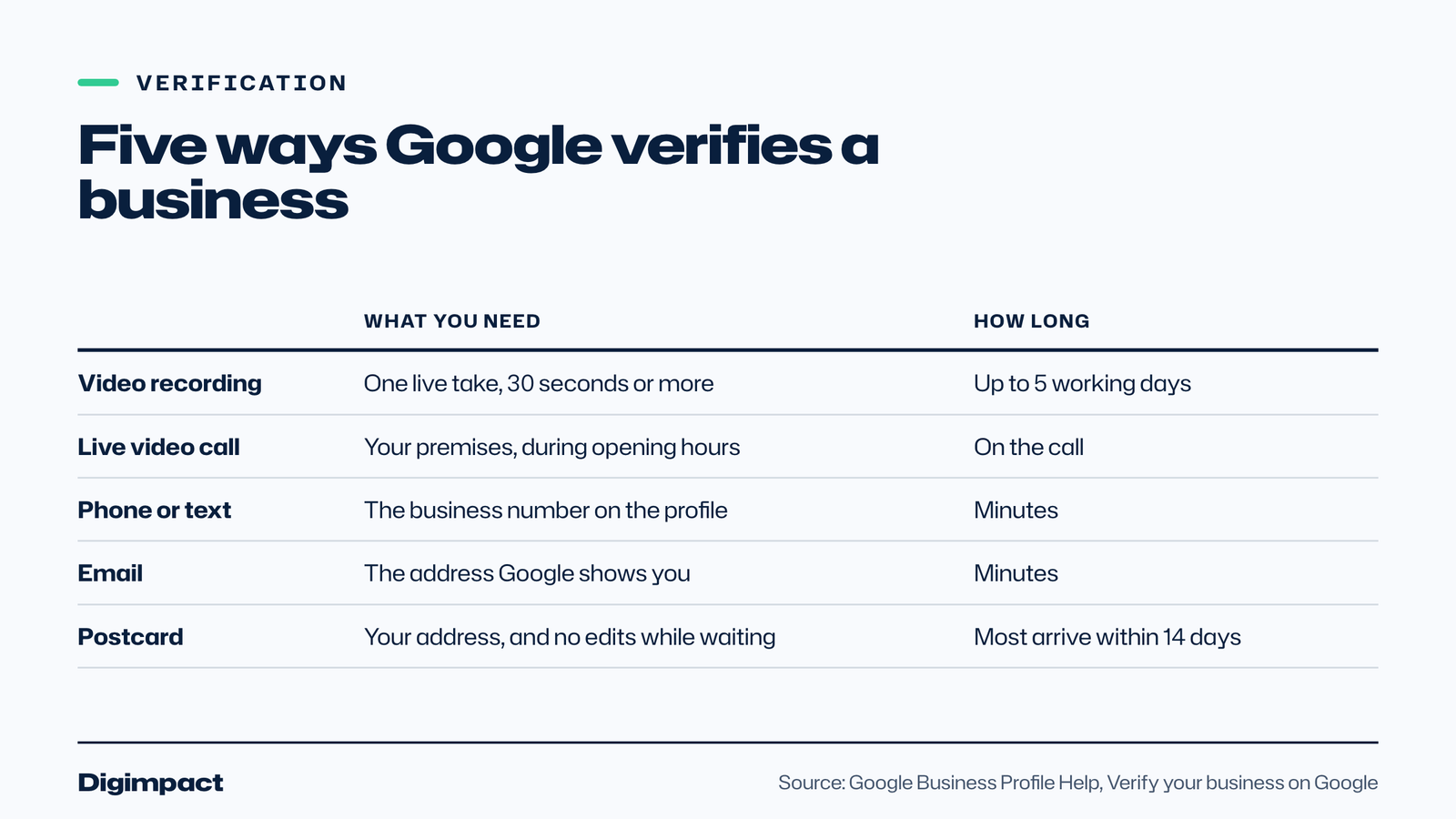
Google Business Profile verification confirms that you own or manage the business. In 2026 the main methods are a recorded video, a live video call, phone or text, email and, for some businesses only, a postcard. Google picks which methods you are offered, and its verification help page recommends video when you are eligible.
The methods differ in what they ask of you:
| Method | What you need | How long it takes |
|---|---|---|
| Video recording | A phone, your premises or tools, and one continuous take of 30 seconds or more | Reviewed in up to 5 working days |
| Live video call | Your location, equipment and proof you manage it, during your opening hours | Done on the call |
| Phone or text | The business phone number on the profile | A few minutes |
| Access to the email address shown on screen | A few minutes | |
| Postcard | Your business address, and not editing your details while you wait | Most codes arrive within 14 days and expire after 30 |
Postcards used to be the standard way to verify a Google Business Profile in the UK. Today Google says verification by postcard is not available for all businesses, so most new profiles are verified by video.
What should a verification video show?
Google’s page on verifying with a video recording says the recording must be live, continuous and at least 30 seconds, made on a mobile device through your profile. Pre-recorded clips and edited videos are rejected.
For a business with premises, show three things in one take: where you are (a street sign, building number or landmark), that the business exists (permanent signage with the same name as your profile) and that you manage it (an employee-only area, the till or your keys). For a service-area business, show the area around your base, the tools or branded van you use, and you opening or using something only the business owner would have.
Leave out bank details, other people’s faces and private information, because Google reviews every Google Business Profile verification video before it approves the profile. If the video is rejected, Google tells you why under Review issues, and you can record again with whatever was missing added at the start.
What should a service-area business do differently?
A service-area business is one that visits customers rather than receiving them, such as a plumber, cleaner or mobile groomer. It should remove its address from public view, list up to 20 service areas within about two hours’ drive, and verify with a video that shows the area and the tools of the trade.
Three details catch service-area businesses out when they set up a Google Business Profile. First, the address still has to be real, even though it is hidden, because Google uses it for verification and for the centre of your area. Second, a home address is fine; customers will not see it. Third, you are allowed one service-area profile, unless you genuinely run separate locations with separate staff, as Google’s guidelines explain.
If you work from home and also have a small unit where customers collect, you are a hybrid business: show the unit’s address and add your service areas as well.
Which mistakes get a new profile suspended?
Most new profiles that get suspended break one of a small number of Google Business Profile rules: keywords added to the business name, a virtual office or PO box as the address, a duplicate profile for the same location, or details changed repeatedly while verification is pending. Avoiding those four keeps almost every new profile safe.
The mistakes that cause most problems, and how to avoid them:
- Keyword stuffing the name. Use the name on your sign and nothing else. If your legal name includes Ltd, Google’s guidelines say you may need real-world proof to use it.
- A virtual office or forwarding address. Google’s guidelines rule out PO boxes and mailboxes at remote locations. Use the real place you work from.
- Two profiles for one business. Claim the existing listing instead of starting again.
- Editing during verification. Google warns that if you change your name, address or category after requesting a postcard code, the code will not work.
- A category for every service. Pick the most specific category for the core business and add only a few extra ones.
If the worst happens, Google has an appeals process. Keep a record of your signage, registration documents and a utility bill in the business name, because these are what an appeal asks for.
What should you do in the first 30 days after verification?
In the first month, ask your happiest recent customers for reviews, add a fresh photo each week, publish one update, answer every review, and check that your hours, phone number and website match your own website exactly. These habits tell Google your Google Business Profile is active and accurate.
A simple first-month plan for a new Google Business Profile:
- Week 1: Send your review link to 10 recent customers you know were happy. Our page on getting more Google reviews explains how to ask without being pushy.
- Week 2: Add five new photos taken in daylight, including one of the outside of your premises or your van.
- Week 3: Post an update about a service, an offer or a seasonal change, with a photo.
- Week 4: Reply to every review so far, thank people by first name, and fix any detail that differs from your website.
Reviews matter for ranking as well as trust. Google’s ranking page says more reviews and positive ratings can help your business’s local ranking. They also give people a reason to choose you over the business next to you on the map.
How does Google decide where your profile ranks?
Google ranks profiles in local results on three factors: relevance (how well your profile matches the search), distance (how far you are from the person searching) and prominence (how well known your business is, including reviews and links to your website). Google says you cannot request or pay for a better local ranking.
You control relevance directly through the category, description and services on your Google Business Profile. You cannot change distance, which is why a profile always ranks best near its base. Prominence builds over time from reviews, photos, mentions of your business elsewhere online and the strength of your website.
That last point is where many businesses stall, even with a complete Google Business Profile. If your Google Business Profile is complete but you still do not appear, the problem is often the website behind it: slow, thin or not clearly about the town you serve. Our guide on why a website is not showing on Google covers the checks in order, and our local SEO service handles the profile and the website together.
Google’s limits at a glance
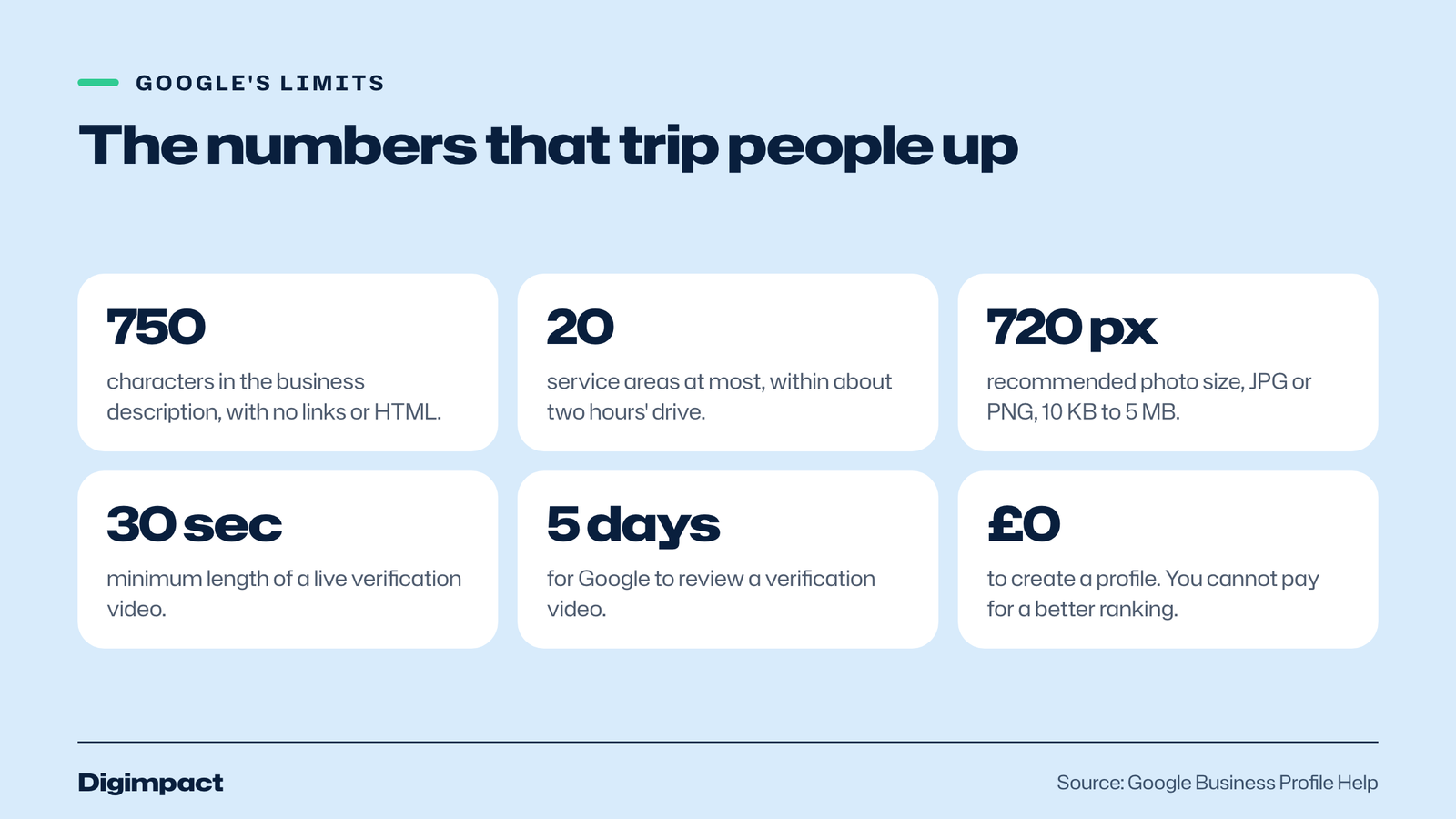
| Detail | Google’s limit or rule |
|---|---|
| Cost | Free to add or claim |
| Business name | Real-world name only, no keywords or taglines |
| Description | 750 characters, no links or HTML |
| Service areas | Up to 20, within about two hours’ drive |
| Photos | JPG or PNG, 10 KB to 5 MB, 720 by 720 pixels recommended |
| Video verification | Live, continuous, 30 seconds or more |
| Verification review | Up to 5 working days |
| Postcard code | Most arrive in 14 days, expire after 30 days |
Frequently asked questions
Is a Google Business Profile free?
Yes. A Google Business Profile is free to create and to keep, and Google’s help pages say you can add or claim your business at no charge. Google also says there is no way to pay for a better local ranking, so anyone selling guaranteed map positions is selling something Google itself rules out.
Can I set up a Google Business Profile without a shop or office?
Yes. If you visit customers rather than receiving them, set up as a service-area business. You enter your real address for verification, then hide it, and list up to 20 towns or postcode areas you cover. Google’s eligibility guidelines require in-person contact with customers, so online-only businesses are not eligible.
How long does Google Business Profile verification take?
Phone, text and email verification take minutes. A recorded verification video is reviewed in up to five working days, though Google says it can occasionally take longer. Postcard codes, where offered, usually arrive within 14 days and expire after 30 days.
Can I use my home address for my Google Business Profile?
Yes. A home address is acceptable as long as the business genuinely operates from there. If customers do not visit you at home, set up as a service-area business and hide the address, so it is used for verification but never shown publicly.
Why can’t I find my business on Google Maps after setting it up?
Usually because verification is not finished, the profile is under review, or it ranks low for the searches you tried. Search the exact business name first. If it appears for the name but not for services, work on your category, description, photos, reviews and website.
Need a hand with your profile?
Setting up a Google Business Profile properly takes an afternoon, and it is worth doing before anything else in local marketing. If you would rather have it done for you, or your profile is set up but not bringing calls, our local SEO service covers the profile, the reviews plan and the website that supports it. You can also start with a free website check to see how your site looks to Google today.
Keep reading
- Portsmouth business websites in 2026 Our check of 195 local business websites: what most get wrong and how to fix it.
- Social media management cost What UK small businesses pay each month in 2026, and what decides the price.
- What a website costs Builders, small custom sites and bespoke builds, with real 2026 prices.
Free website check
How does your own website do?
Enter your website and see a quick check on screen in about 20 seconds: speed, Google, phones and the details that win the click. A full written report follows within two working days, free and with no sales call unless you ask.
Want help with this?
Tell us about your business. We reply within one working day with a time for a 30-minute call, and a fixed quote afterwards.
Rather talk now? Call 07551 079787.
Thanks, that is with us.
We will reply within one working day with a time for a call.