How to get your Google review link and QR code, and where to use them
How to create your Google review link and QR code, the best places to share them so customers actually leave reviews, and the Google and UK rules on asking for reviews.
By GP 13 minute read
TL;DR: To get your Google review link, open your Business Profile on a computer, select Read reviews, then Get more reviews, and copy the link or save the QR code. Share it on receipts, in thank you emails, at the end of a chat and on a printed QR code in your shop. Never offer anything in return for a review and never ask only happy customers: Google calls incentives fake engagement, and UK law treats cherry-picking reviews as misleading.
Key takeaways
- Your Google review link takes customers straight to the box where they write a review of your business, with no searching.
- Get it from your Business Profile: Read reviews, then Get more reviews, then copy the link or save the QR code.
- Google says review QR codes can only be generated in a computer browser, not on a phone.
- Google suggests sharing the link on receipts, in thank you emails, at the end of a chat and on a printed QR code in your shop.
- Offering anything in return for a review, or asking only happy customers, breaks Google’s policy, and UK law treats cherry-picking reviews as misleading.
What is a Google review link?
A Google review link is a web address that opens the review form for your business directly, so a customer can tap it, choose a star rating and write a review without searching for you on Google Maps first. Google also gives you the same link as a QR code that customers can scan with a phone camera.
Fewer steps means more reviews. A customer who has to search for your business, find the right listing, scroll to the reviews and find the button may give up halfway. With a Google review link, they are one tap away from writing it.
Google’s own help page, Tips to get more reviews, puts reminding customers first among its best practices, and says you can ask them to visit a Google link or scan a QR code. Everything in this guide comes from Google’s help pages, checked on 14 October 2026. If you do not have a Business Profile yet, start with our guide to setting up a Google Business Profile, because the link only exists once the profile is verified.
How do you get your Google review link?
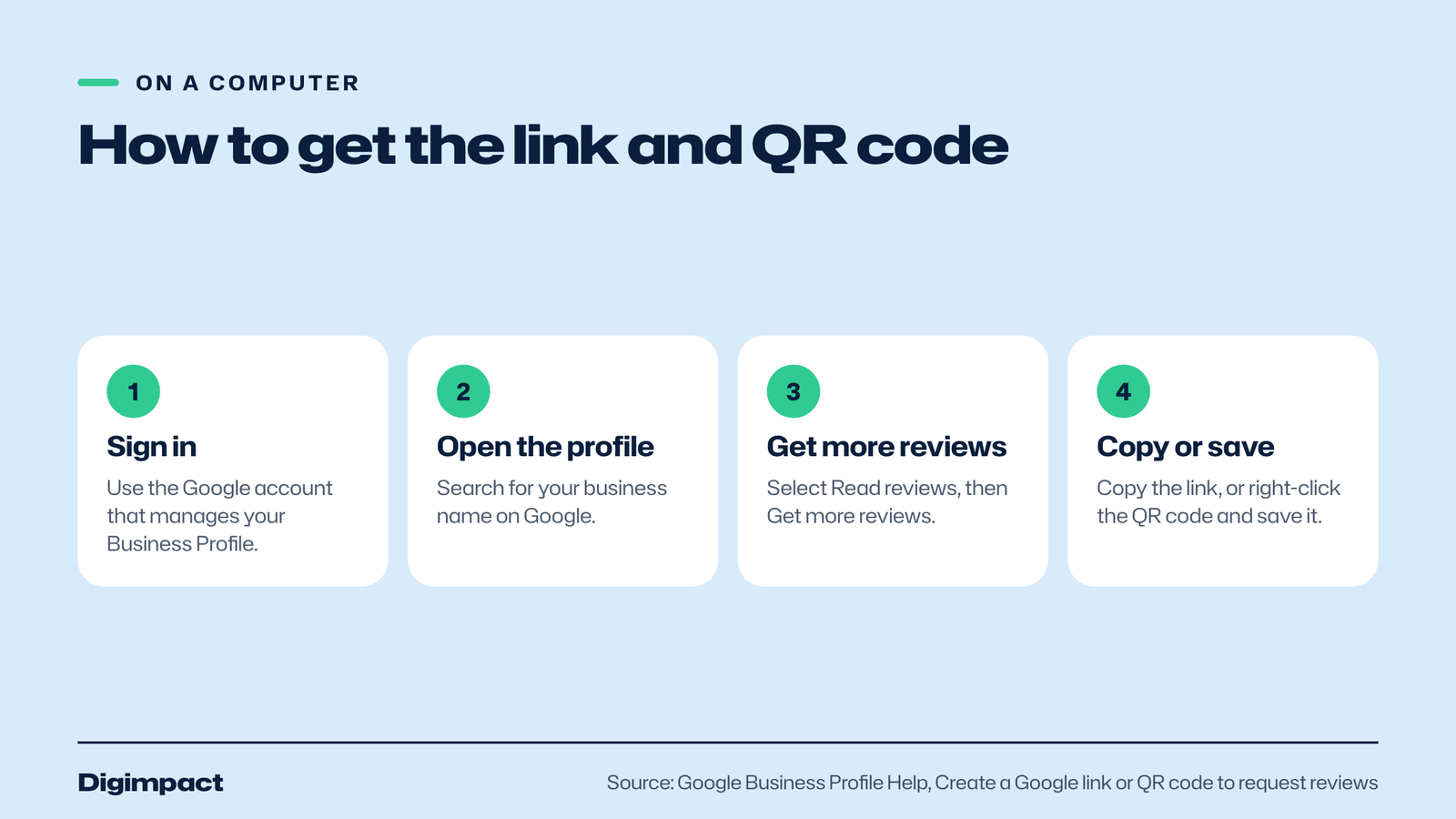
Open your Google Business Profile in a browser on a computer, select Read reviews, then select Get more reviews. Google shows your review link and a QR code. Select Copy to copy the link, or right-click the QR code and choose Save image as to download it. The whole process takes about a minute.
Google’s page on how to create a Google link or QR code to request reviews sets out the steps:
- Sign in to the Google account that manages your Business Profile, on a computer.
- Go to your Business Profile, for example by searching for your business name on Google.
- Select Read reviews, then Get more reviews.
- Select Copy to copy the review link, or right-click the QR code and select Save image as to save it.
Google notes that review QR codes can currently only be generated on a computer browser, not on mobile devices. You can still share the link from your phone once you have copied it, and the same screen offers to share it by email, WhatsApp or a Facebook post.
Test the link before you share it. Open it in a private browser window or on a phone that is not signed in to your business account, and check that it opens the review form for the right business. If you have more than one location, each profile has its own Google review link, so make sure each shop uses its own.
Where should you share your review link?
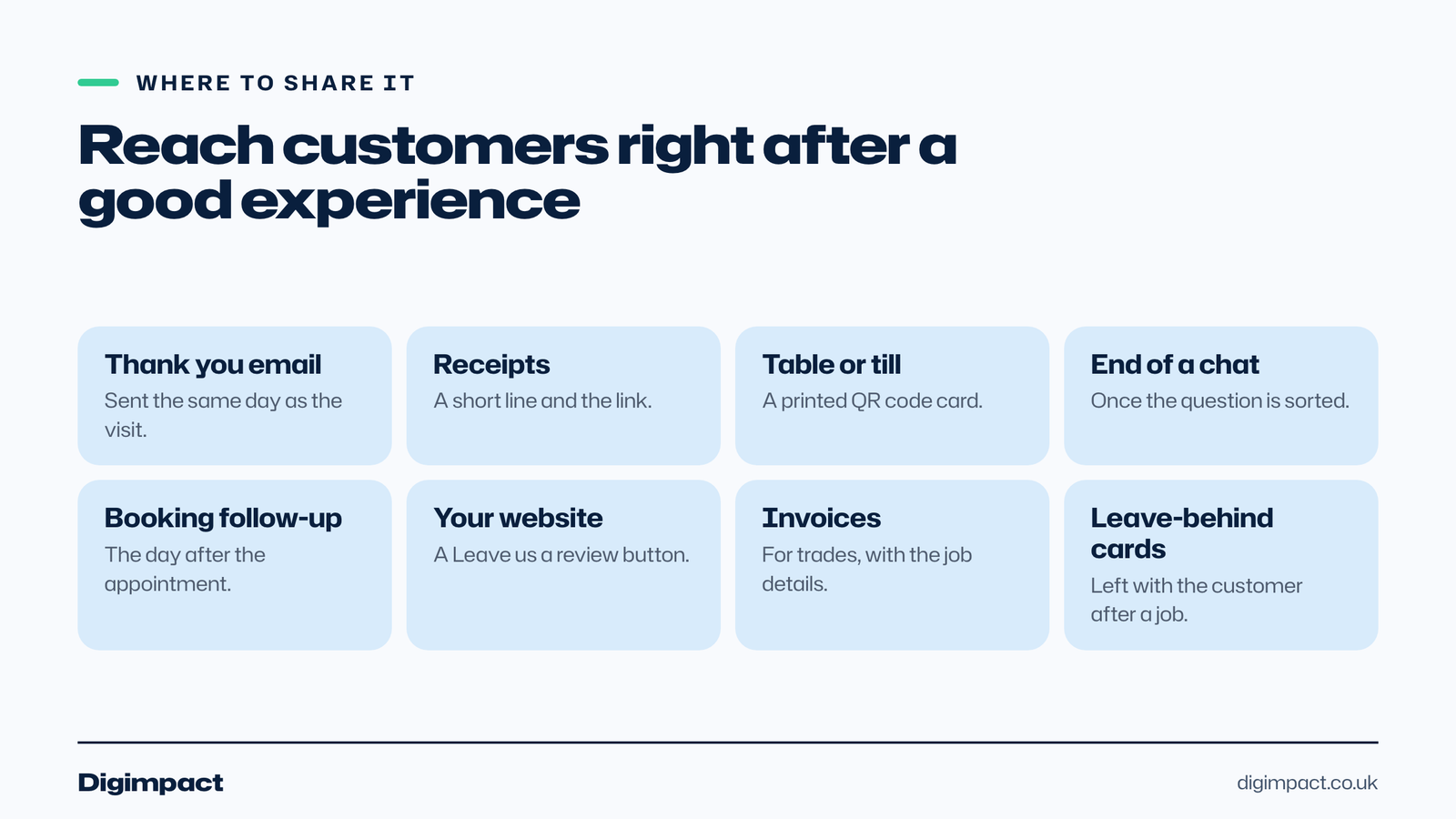
Share your review link wherever customers are already happy and have their phone in hand: on receipts, in thank you emails, at the end of a chat and on a printed QR code at the till or on the table. Google suggests all four, and they work because they reach customers right after the experience, when it is fresh.
Google’s help page lists receipts, thank you emails, the end of a chat interaction and a printed QR code in your shop as ways to encourage customers to use it. In practice, the best places for a local business are:
- The thank you email or text after an appointment, a job or a booking.
- Receipts and invoices, printed or emailed, with a short line and the link.
- A QR code at the till, on tables or on the counter, printed on a small card or stand.
- The end of a WhatsApp or Messenger chat, once the customer’s question is sorted.
- Your booking confirmation follow-up, sent the day after the visit.
- Your website, on the reviews or contact page, with a Leave us a review button.
- Business cards and leave-behind cards for trades, left with the customer after a job.
Timing matters as much as place. A request sent the same day, while the haircut, meal or repair is fresh, is far more likely to be answered than one sent a week later. A booking system or review request tool can send it automatically after each visit.
How do you use the Google review QR code?
Print the QR code where customers wait or pay, such as on the counter, the table, the reception desk or the back of a card, with a one-line invitation such as Enjoyed your visit? Scan to leave us a Google review. Test the printed code with two different phones before you put it out.
A few practical points make the QR code work better:
- Print it large enough to scan easily from where the customer stands or sits, and test it at that distance.
- Add a short line of text so people know what the code does before they scan it.
- Keep a clear margin of white space around the code; cropping it too tightly can stop phones reading it.
- Use the code Google gives you. Some free QR generators send the scan through their own short links, which can stop working later; Google’s own code points straight at your profile.
- Put it where people pause, not by the door on the way out.
For restaurants and cafés, a small card on each table or a line on the bill works well. For salons and clinics, a stand at reception. For trades, a QR code printed on the invoice or a card left with the customer after the job.
What are the rules on asking for Google reviews?
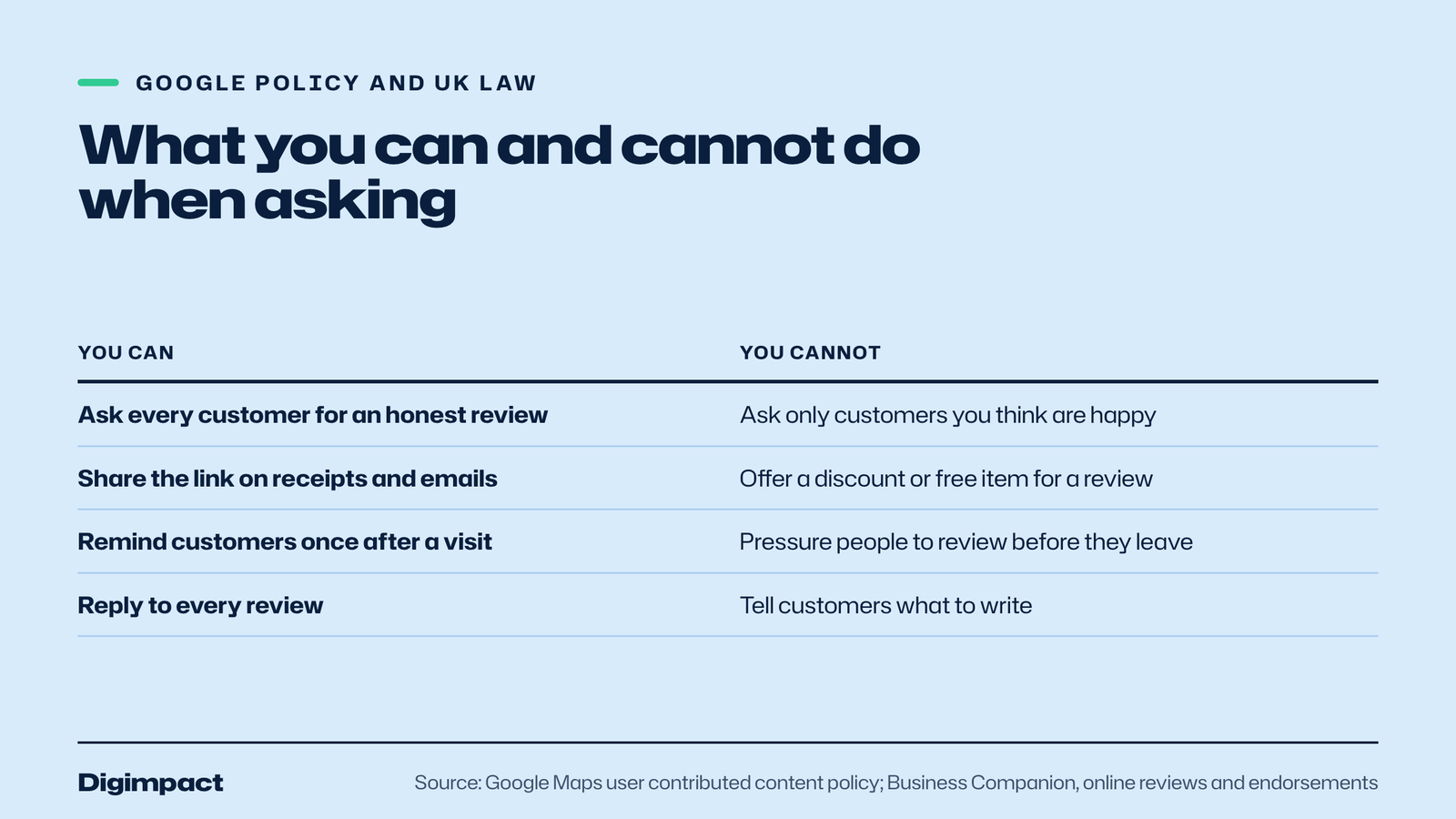
You can ask any customer for an honest review, but you must not offer anything in return, ask only happy customers, pressure people to review on the spot, or tell them what to write. Google treats incentives as fake engagement, and UK consumer law bans fake reviews and misleading review information.
Google’s Maps user contributed content policy says businesses must not offer incentives such as payment, discounts or free goods or services in exchange for a review, or for changing or removing a negative one. It also says businesses must not discourage negative reviews or selectively solicit positive reviews, and should not require or pressure customers to leave reviews while on the premises or ask for specific content to be included.
The same policy says businesses should not ask staff to collect a set number of reviews or reviews that mention a particular staff member. What Google does allow is simple: asking customers to post a review of a genuine experience, without incentives and without trying to influence the rating or what they say.
| You can | You cannot |
|---|---|
| Ask every customer for an honest review | Ask only customers you think are happy |
| Share your link on receipts, emails and QR codes | Offer a discount, free item or prize for a review |
| Remind customers once after their visit | Pressure people to review before they leave |
| Reply to every review, good or bad | Tell customers what to write or which name to mention |
| Report reviews that break Google’s policies | Set staff targets for a number of reviews |
UK law points the same way. Since the Digital Markets, Competition and Consumers Act 2024 took effect, businesses must not commission or publish fake reviews, conceal incentivised reviews or present review information in a misleading way. Business Companion, the Trading Standards guidance site, explains in its online reviews and endorsements guide that suppressing negative reviews and cherry-picking good ones are both treated as misleading.
Is review gating allowed?
No. Review gating means asking customers how their visit went first and only sending the Google review link to those who say it was good, while unhappy customers are sent to a private feedback form. Google’s policy bans selectively soliciting positive reviews, and UK guidance treats cherry-picking good reviews as misleading.
Some review tools still offer this as a feature, usually as a happy or sad face before the link. Avoid it. Send the same Google review link to everyone, and handle unhappy customers by replying to their review and fixing the problem. Google’s own advice notes that a mix of positive and negative feedback often feels more trustworthy to people reading reviews.
Why do reviews from the link sometimes not appear?
A review can take a few days to appear because Google checks reviews against its policies first. Reviews that break the policies are removed and will not be restored. Customers also need to be signed in to a Google account to leave a review, though Google says they can create one with a non-Gmail email address.
Google’s page about missing or delayed reviews lists the main reasons: policy checks that can take a few days, recently merged profiles, and customers using older phones or an out-of-date Maps app. If a customer tells you their review has not appeared after a few days, ask them to check they were signed in and that the Maps app is up to date.
If lots of reviews arrive in a short burst, Google’s policy says unusual volumes or patterns of reviews can be treated as an attempt to manipulate a rating. A steady flow of requests after each visit is safer and more useful than a big push once a year.
What should you say when you ask for a review?
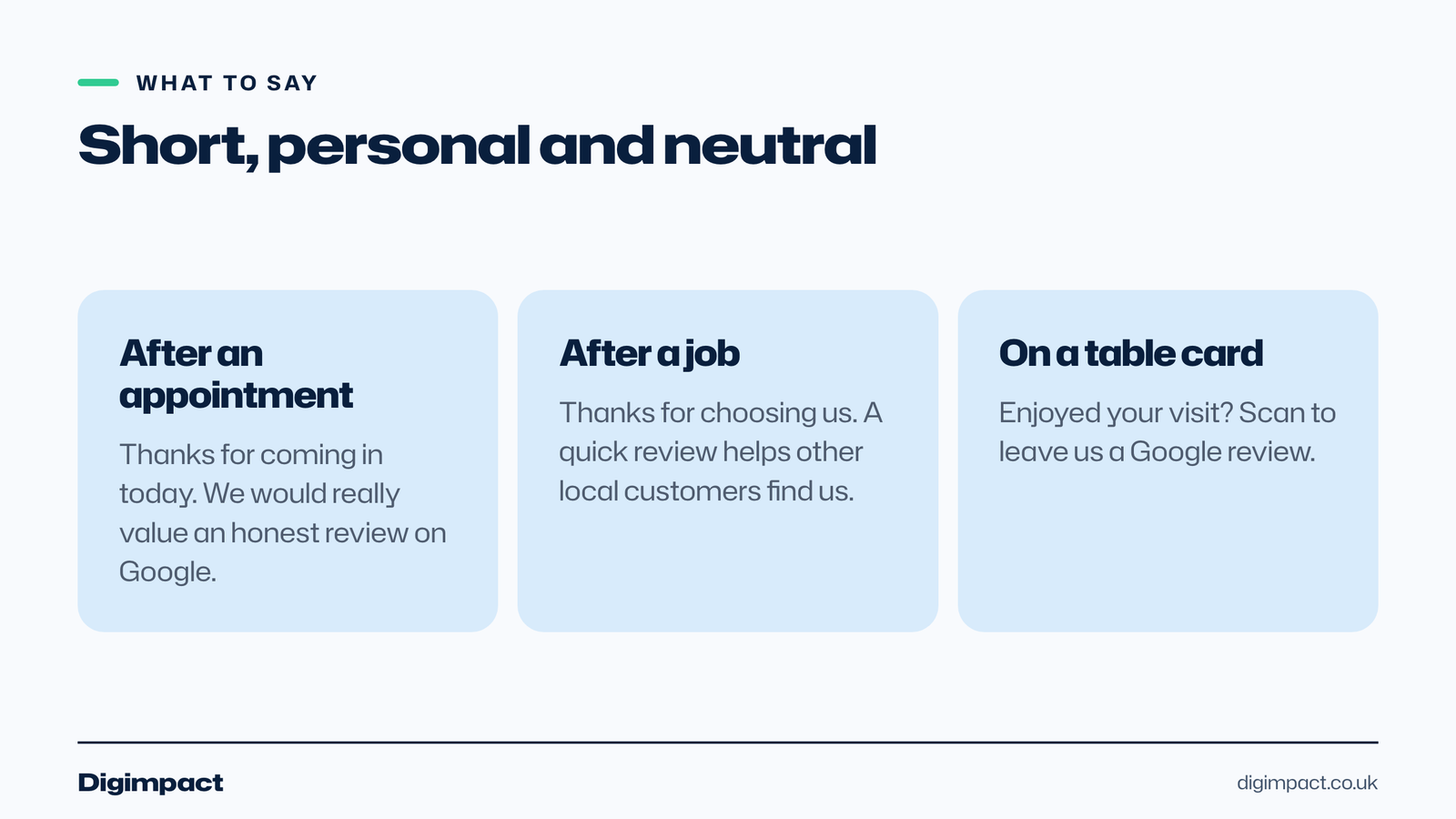
Keep the request short, personal and neutral: thank the customer, ask for an honest review, and give the link. Do not hint at the star rating you want or what to mention. One reminder is enough; repeated chasing annoys people and can feel like pressure.
These examples follow Google’s rules and work for most local businesses:
- After an appointment: Thanks for coming in today. If you have a moment, we would really value an honest review on Google: [your Google review link]
- After a job: Thanks for choosing us for your new boiler. If you could leave a quick review of how it went, it helps other local customers find us: [your link]
- On a table card: Enjoyed your visit? Scan to leave us a Google review.
When the reviews come in, reply to them. Google says replies show customers that their feedback matters, and the person who wrote the review is notified when you reply. Our guide on how to respond to Google reviews has templates for good and bad ones.
How do you share one of your best reviews?
Google also lets you link to a single review, which is useful for showing a glowing testimonial on your website or social media. In Google Maps, search for your business, select Reviews, then select More next to the review, then Share review, then Send a link, and copy the link Google gives you.
Google’s page on managing customer reviews describes positive reviews as helpful testimonials and sets out these steps. A link to the real review is more convincing than a quote typed onto your website, because anyone can click through and see it on Google. Ask the customer before you feature their review prominently, and use their first name only.
What if the link opens the wrong business?
If your review link opens a different listing, you are probably managing a duplicate or an old profile. Check which profiles your Google account manages, and make sure you copy the link from the verified profile that customers actually find on Google Maps for your address.
Duplicates also split your reviews between two listings, which weakens both. Google’s guidelines allow one profile per location, so claim the old one rather than creating another. Our guide to a suspended Google Business Profile explains why duplicates cause problems and what Google expects instead.
How do you know if your review requests are working?
Count new reviews each month and compare them with the number of customers you asked. If few of the customers you ask leave a review, try sending the request sooner after the visit, shortening the message, or adding the QR code where people pause, then compare the next month.
Look at the content of the reviews too. Reviews that mention the service, the dish or the town the customer came from help other customers decide, and they show you what people value most. Reply to each one, and use what they say to improve the next visit.
Frequently asked questions
How do I find my Google review link?
On a computer, open your Google Business Profile, select Read reviews, then Get more reviews, and select Copy. The same screen shows a QR code you can save by right-clicking it and choosing Save image as.
Can I get the Google review QR code on my phone?
Not at the moment. Google says review QR codes can only be generated on a computer browser, not on mobile devices. Once you have saved the image on a computer, you can send it to your phone or print it.
Can I offer a discount for a Google review?
No. Google’s policy says offering incentives such as discounts or free goods or services in exchange for a review is fake engagement and is strictly prohibited. UK law also bans concealed incentivised reviews.
Can I send my review link only to happy customers?
No. Google’s policy says businesses must not selectively solicit positive reviews, and UK guidance treats cherry-picking good reviews as misleading. Send the same Google review link to every customer.
Does every location need its own review link?
Yes. Each Business Profile has its own review link and QR code, so each location should share the link for its own profile. Otherwise reviews end up on the wrong listing.
Want review requests sent automatically?
Asking every customer for a review, every time, is the habit that builds a strong Google profile, and it is easy to forget on a busy day. Our Google review requests system sends your Google review link to every customer after their visit, within Google’s rules, and our page on getting more Google reviews explains how it fits into your website and booking system.
Keep reading
- How to make Reels for business on a phone, step by step A practical guide to filming Instagram Reels for a local business on a phone: what to film, how long Reels should be, how to edit and caption them, when to post and how to reuse them on other platforms.
- Apple Business Connect is now Apple Business: how to get your business on Apple Maps (2026 UK guide) Apple Business Connect became part of Apple Business in April 2026. This UK guide shows how to add your business to Apple Maps in seven steps, what is free and available in the UK, and how to use showcases, action buttons and insights.
- How to choose your Google Business Profile categories How to choose the right Google Business Profile categories, why the primary category matters most, when additional categories help, the mistakes Google warns against, and how to change them safely.
Free website check
How does your own website do?
Enter your website and see a quick check on screen in about 20 seconds: speed, Google, phones and the details that win the click. A full written report follows within two working days, free and with no sales call unless you ask.
Want help with this?
Tell us about your business. We reply within one working day with a time for a 30-minute call, and a fixed quote afterwards.
Rather talk now? Call 07551 079787.
Thanks, that is with us.
We will reply within one working day with a time for a call.