LinkedIn company page: how to create one for a UK small business, set it up properly and know what to post
A UK guide to the LinkedIn company page: what you need before you start, how to create one in six steps, the image sizes and admin roles LinkedIn recommends, what Premium Company Page adds, and what a small business should post.
By GP 14 minute read
TL;DR: A LinkedIn company page is a free profile for your business on LinkedIn. To create one you need a personal LinkedIn account with your real name, more than one connection and at least a day’s history. Create it from the For Business menu on a computer or the iPhone app, fill in every section, because LinkedIn says complete Pages get 30% more weekly views, add a second super admin, then post at least weekly.
Key takeaways
- A LinkedIn company page is free. It gives your business its own presence on LinkedIn, separate from your personal profile.
- To create one you need a personal LinkedIn account with your real name, more than one connection, and an account at least a day old. LinkedIn may also ask you to verify your workplace.
- You can create a Page on a computer or in the LinkedIn app on an iPhone. LinkedIn says creating a Page is not supported on Android.
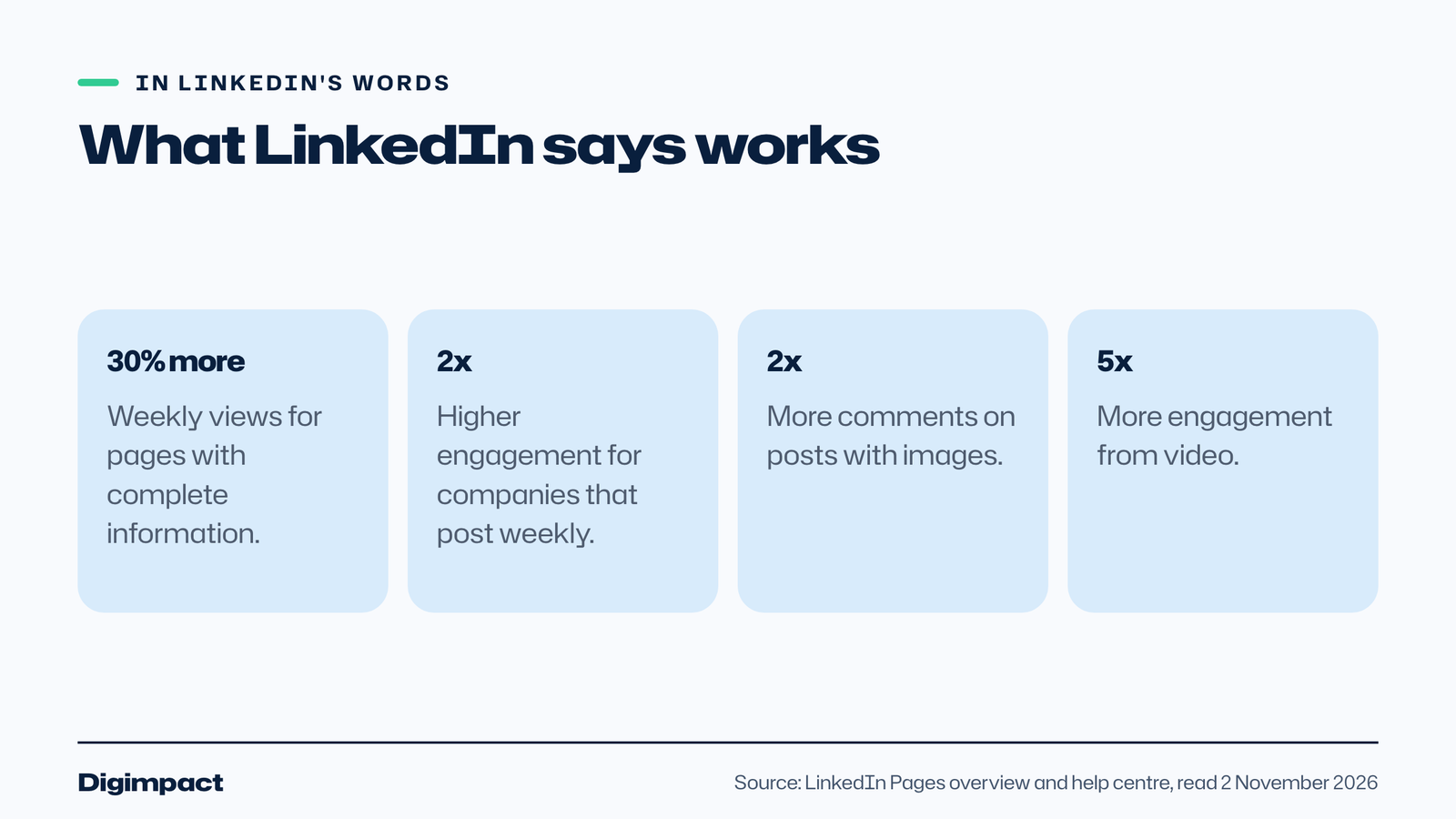
- LinkedIn says Pages with complete information get 30% more weekly views, and companies that post weekly see twice the engagement.
- Add a second super admin straight away. LinkedIn says it cannot replace or remove admins for you if the only one leaves.
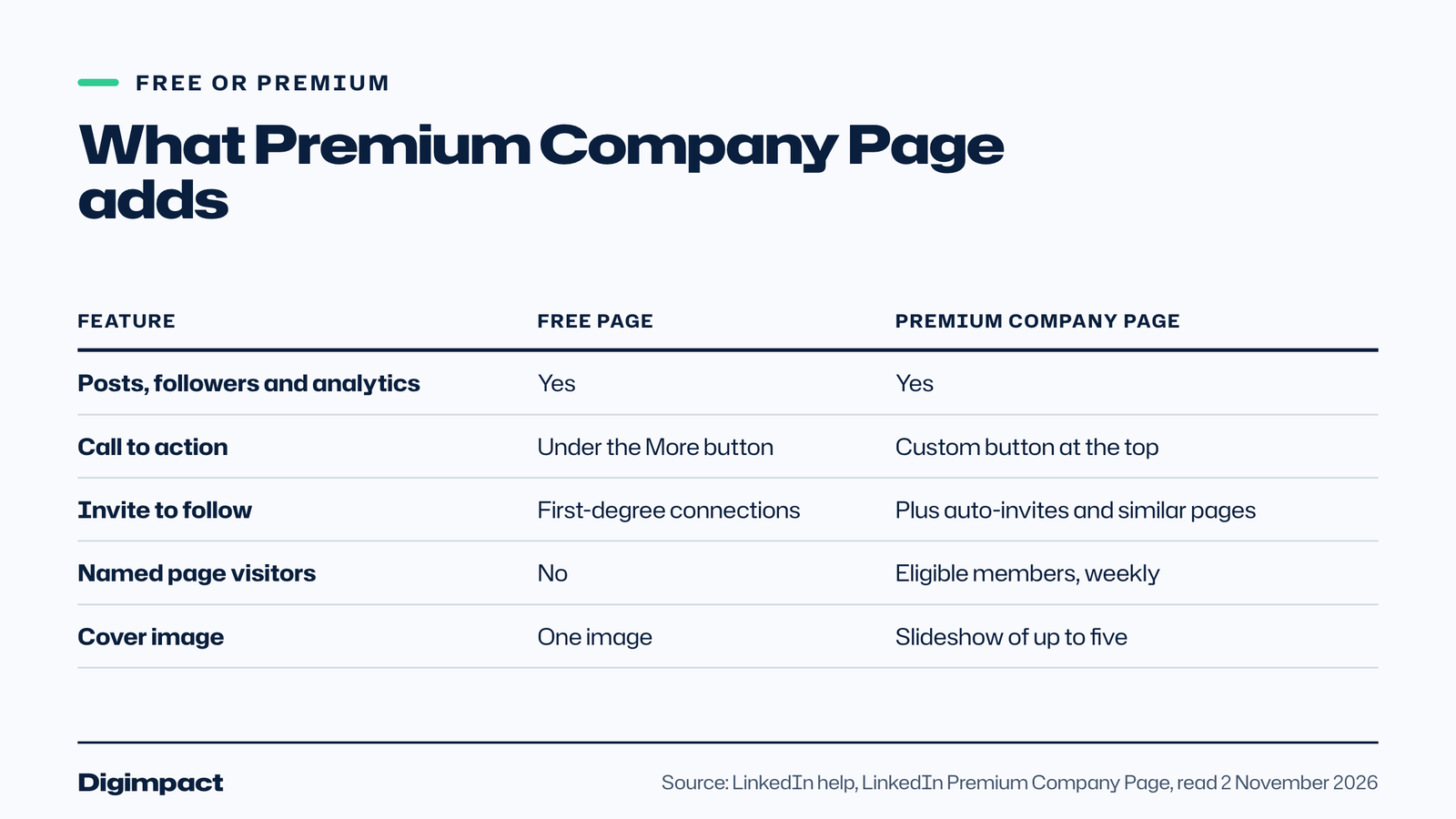
- Premium Company Page is a paid add-on that makes a page eligible for a verification badge and adds a custom button and a list of page visitors. Most small businesses can start with the free LinkedIn page.
If your customers are other businesses, or you hire staff, LinkedIn is one of the places people check you out before they reply to an email or apply for a job. A LinkedIn company page gives your business its own presence there, with your logo, a description, your website and a feed of updates, instead of everything hanging off one person’s profile.
This guide covers what a LinkedIn company page is, what you need before you start, how to create one in six steps, the image sizes and admin roles LinkedIn recommends, what Premium Company Page adds, and what a small business should actually post.
What is a LinkedIn company page?
A LinkedIn company page is a free profile for an organisation on LinkedIn. It shows your logo, cover image, description, website, industry and locations, lets people follow your business, and lets you publish posts, list jobs and see analytics about your followers and visitors.
LinkedIn calls it a LinkedIn Page. Its help article on creating a Page says a Page helps members learn about your business, brand, products and services, and job opportunities. People also search for it as a LinkedIn business page, but it is the same thing.
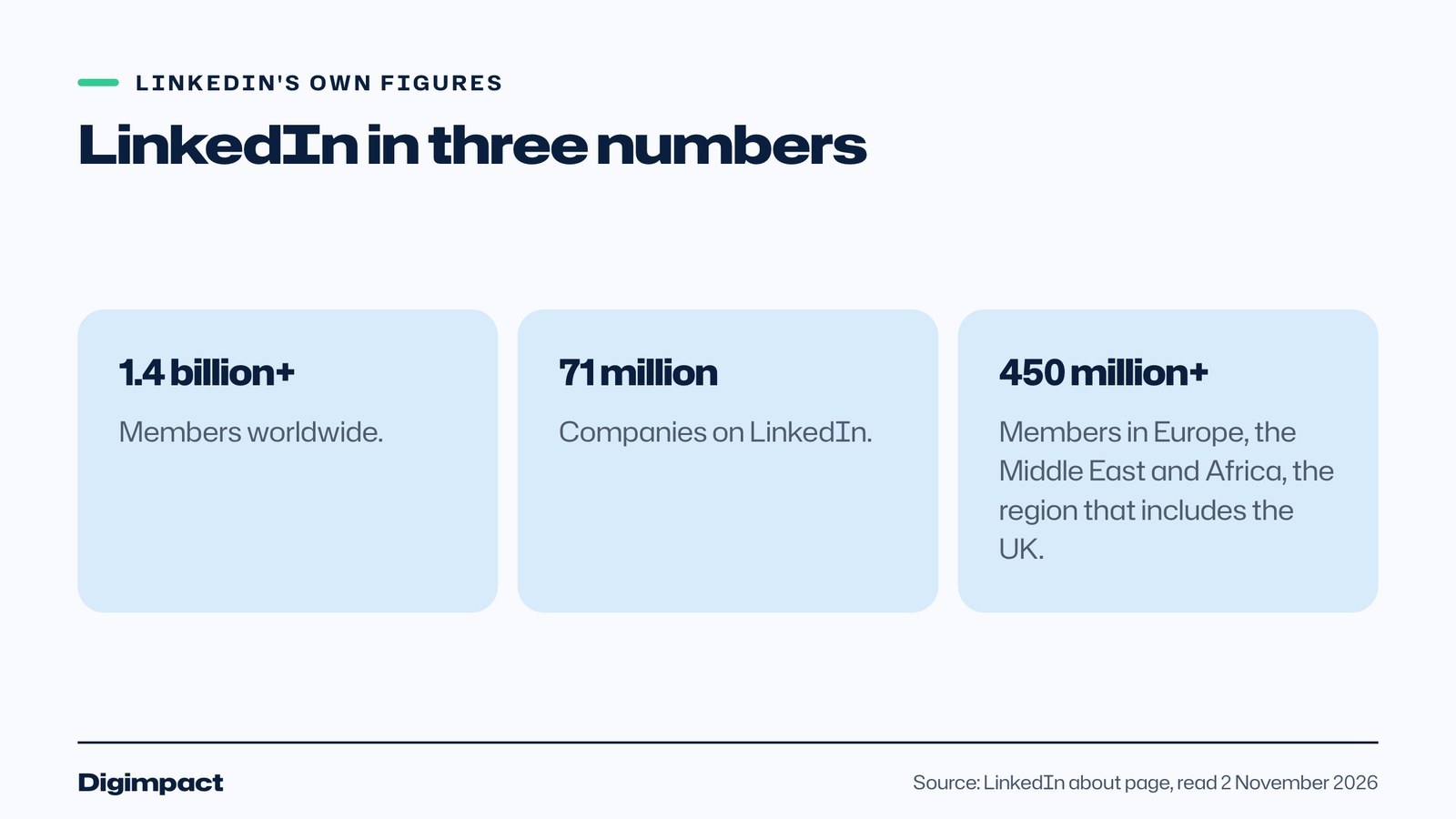
LinkedIn is large enough to matter for almost any business that sells to other businesses. Its about page lists more than 1.4 billion members and 71 million companies, with more than 450 million members across Europe, the Middle East and Africa, the region that includes the UK.
Do you need a LinkedIn company page?
You need a LinkedIn company page if you sell to other businesses, recruit staff, or want your team’s profiles to link to your business. Local consumer businesses, such as a café or a hairdresser, will usually get more from Facebook, Instagram and Google, but a LinkedIn page still helps if you hire or work with other firms.
A LinkedIn page also stops a common mistake. Some owners create a second personal profile in the business’s name. LinkedIn’s troubleshooting guide says personal profiles that represent businesses rather than real people might be flagged as spam or abuse. Pages are the right place for a business.
There is a practical benefit too. When staff list your business as their employer, their profiles link to your LinkedIn company page and show your logo. LinkedIn says it can take between 14 and 30 days for someone to appear as an associated employee after adding the Page to their profile.
What do you need before you create a LinkedIn page?
You need a personal LinkedIn account in your real name, with a confirmed email address, more than one connection, and at least a day’s history. If LinkedIn asks, you also need to verify your workplace before it lets you create a Page.
LinkedIn’s best practices for creating a Page and its troubleshooting guide list the checks:
- A personal profile with your real first and last name, and a confirmed email address.
- More than one connection with another member.
- An account that is at least a day old. LinkedIn also limits how many Pages you can create in a short time.
- Sometimes, a verified workplace. LinkedIn may ask you to verify the work experience on your profile through work email verification or Microsoft Entra Verified ID.
Work email verification is easier with an address on your own domain. If you are still using a Gmail address for the business, our guide to setting up a business email address shows how.
Check whether your business already has a page
Before you create anything, search LinkedIn for your business name. LinkedIn creates Listing Pages for some organisations, using publicly available information, licensed data and other sources. A Listing Page carries a banner saying LinkedIn created it, and a current employee can claim it, after which it works like a normal Page.
If a full Page already exists and someone else manages it, request admin access instead of creating a second one. Two Pages for one business split your followers and confuse customers.
How to create a LinkedIn company page in 6 steps
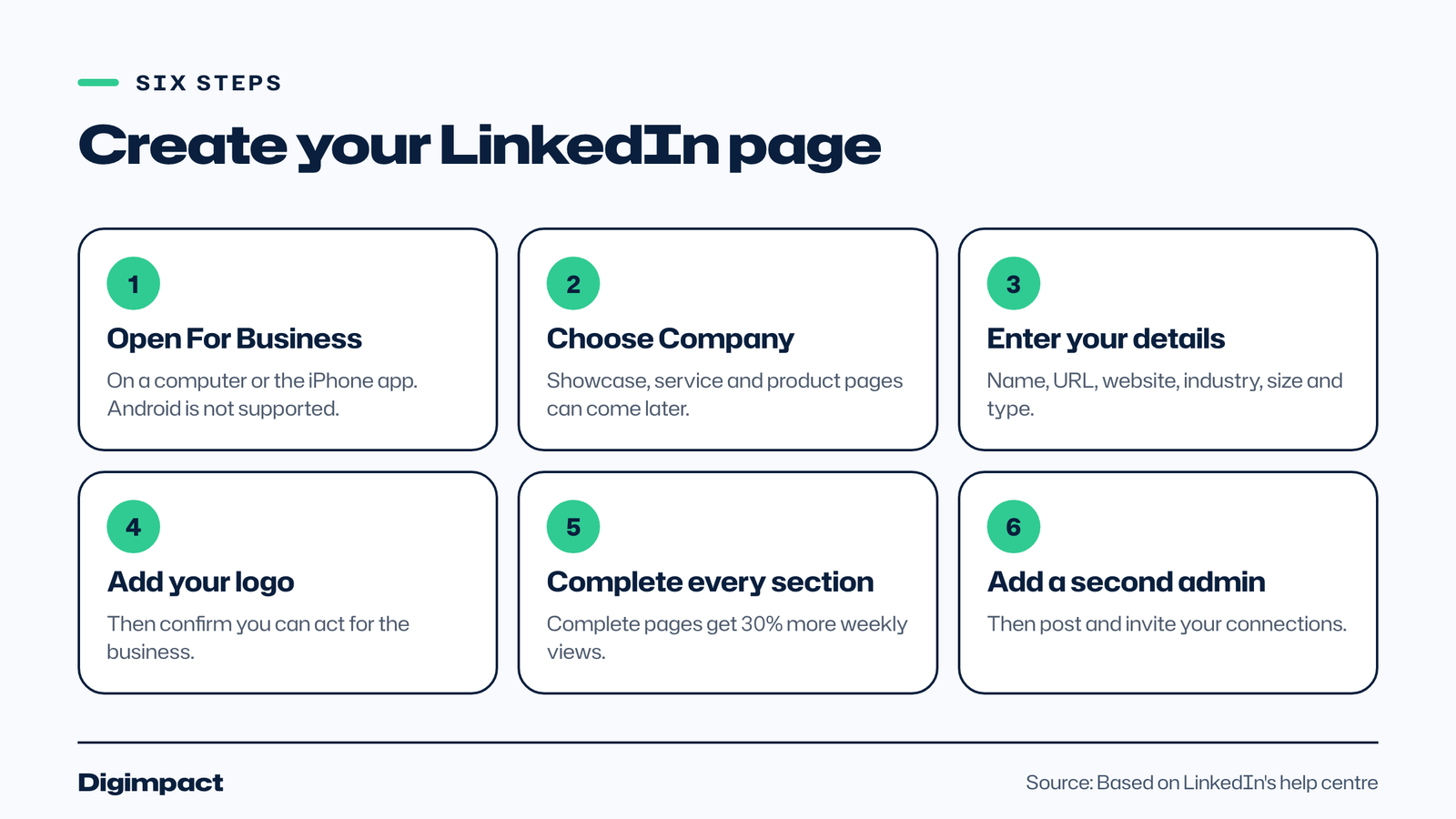
To create a LinkedIn company page, click the For Business icon at the top right of LinkedIn on a computer, choose Create a Company Page, enter your business details and logo, tick the box to confirm you can act for the business, then complete every section.
1. Open the For Business menu
On a computer, click the For Business icon in the upper right corner of your LinkedIn homepage, scroll down and click Create a Company Page. In the LinkedIn app on an iPhone, tap the More icon and choose Create a LinkedIn Page. LinkedIn says creating a Page is not supported on Android devices, so use a computer if you have an Android phone.
2. Choose the right type of page
LinkedIn’s Pages overview lists four free types. Most businesses want a Company page. The others are add-ons you can create later:
- Company page: your main business presence, with posts, followers, analytics and a call to action.
- Showcase page: a page for a brand, business unit or initiative linked to your main page. Each LinkedIn page can have up to 25.
- Service page: lists your services, and LinkedIn says any member can message you for free about them and request a proposal.
- Product page: highlights products, mainly digital ones such as online courses and software.
3. Enter your business details
Enter your company name, LinkedIn public URL, website, industry, company size, company type and an optional tagline. Every Page URL follows the pattern linkedin.com/company/your-name. LinkedIn’s rules say it cannot use capital letters, must include at least one character that is not a number, and cannot start or end with a hyphen or contain two hyphens in a row. If the name you want is taken, add a word, for example your town.
4. Add your logo and confirm you can act for the business
Upload your logo, then tick the verification box to confirm you have the right to act on behalf of the business, and click Start building your page. You become the super admin of the Page.
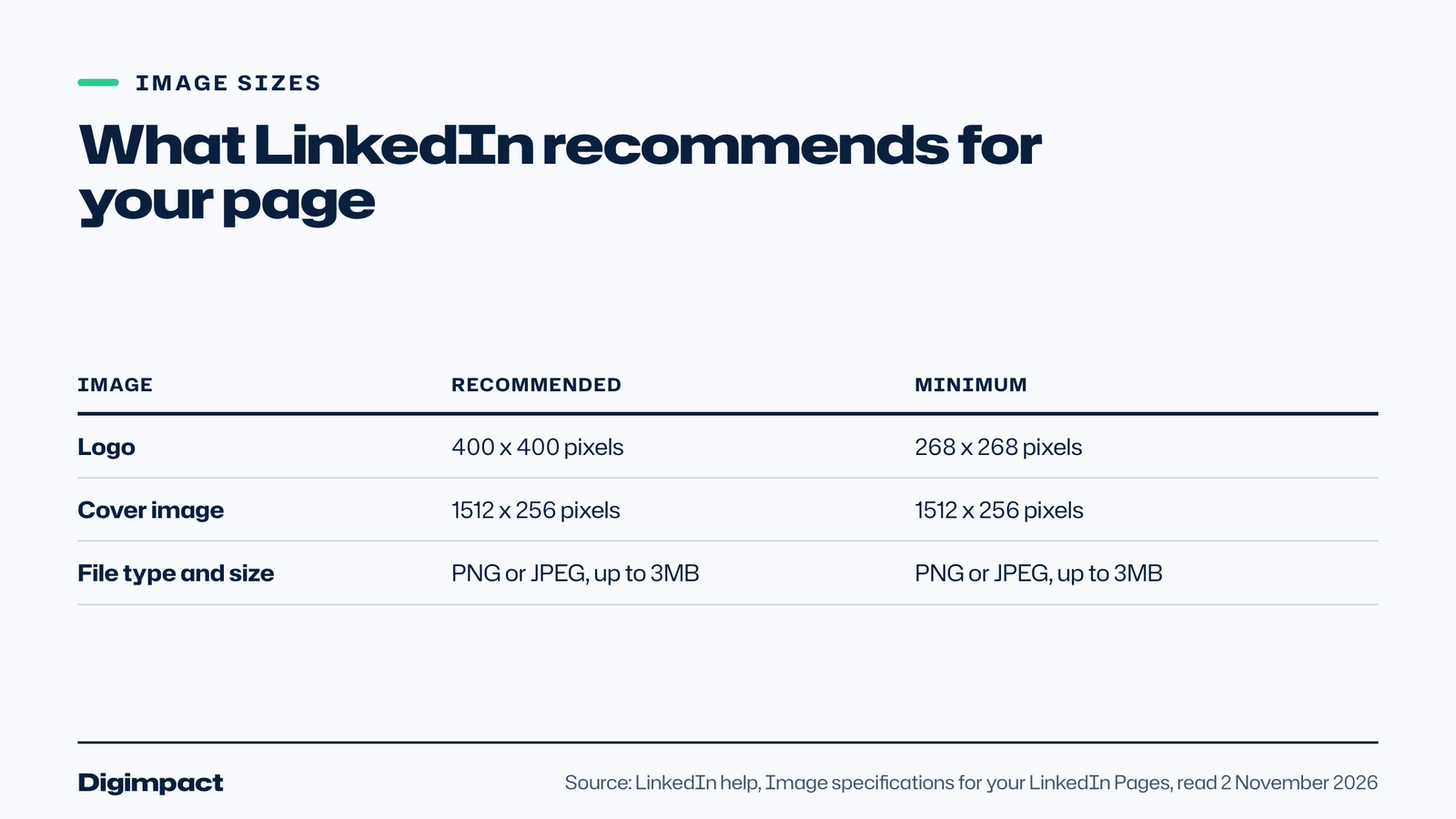
LinkedIn’s image specifications recommend a logo of 400 by 400 pixels, with 268 by 268 as the minimum, and a cover image of 1512 by 256 pixels. Both must be PNG or JPEG files of up to 3MB. Your logo appears on light and dark backgrounds, so test it on both.
5. Complete every section
Fill in the overview, website, industry, company size and locations. LinkedIn’s guide to completing your Page says the Industry, Company size and Overview sections are mandatory if you want to use the Invite to follow feature. You can add several locations and mark your main office.
This step pays off. LinkedIn says complete Pages see a 30 percent increase in weekly Page views. Write the overview for a customer, not for LinkedIn: what you do, who for, where, and what makes you different, in plain sentences.
6. Add a second admin, then post and invite
Add at least one more super admin. LinkedIn’s best practices say to add others in case a super admin loses access or leaves the organisation, and warn that LinkedIn cannot provide admin information, or replace or remove admins, for you.
Then publish your first post, share the page from your admin view, and invite your connections to follow it. Ask your team to add the business as their employer on their own profiles, so their profiles link back to the page.
LinkedIn page admin roles explained
A LinkedIn page has three admin roles: super admin, content admin and analyst. Super admins control everything, content admins create and manage posts, events and jobs, and analysts can view and export analytics without changing anything.
LinkedIn’s admin roles guide sets out who can do what:
- Super admin: manages admins, edits every field of the page, and does everything a content admin can.
- Content admin: creates and manages posts and sponsored content as the page, boosts posts, runs events, sees member posts that mention the business, and edits the Jobs and Life tabs.
- Analyst: views and exports analytics and can see who the admins are, without editing anything.
Give the owner and one trusted manager super admin access. Give anyone else who posts, such as a marketing assistant or an agency, content admin access. That way the business never depends on one person’s login.
How do you get followers on a LinkedIn company page?
You get followers on a LinkedIn company page by inviting your connections, asking staff to list the business as their employer, sharing the page wherever customers already see you, and posting useful updates every week. Followers come slowly at first, which is normal for a new page.
Start with the people who already know you. The Invite to follow button sends invitations to your first-degree connections. Add the page link to your email signature, your website footer and your other social profiles. Our guides to the Facebook business page and Instagram business account cover those channels.
LinkedIn’s own advice is to keep posting. Its Pages overview says companies that post weekly see two times higher engagement, and that when someone engages with a post, you should invite them to follow. It also says posts with images get twice as many comments, and video drives five times more engagement.
What should a small business post on LinkedIn?
A small business should post things that show its work and its people: finished projects, before and after photos, customer results, short tips from your expertise, team news, jobs, and events you are attending. Aim for one post a week to start, with a photo or a short video in most of them.
Ideas that work for most small businesses:
- A recent project, with photos and one line on the problem it solved.
- A short tip a customer would pay you for, such as how to prepare for a survey or what to check before buying.
- A new hire, a work anniversary or a qualification someone earned.
- A job advert, with a photo of the team or the workplace.
- An event, trade show or local award you are part of.
- A client testimonial, with their permission.
- A behind the scenes video of how you do the work.
Write in a normal voice and lead with the useful part, because people see the first lines before they choose to read more. For a sense of how often to post across all channels, see our guide on how often to post on social media.
What does LinkedIn Premium Company Page add?
Premium Company Page is a paid subscription for a LinkedIn page. LinkedIn’s Premium Company Page guide says Premium pages are eligible for a verification badge, and that it adds a custom call to action button, a list of eligible members who visited your page, automatic follow invitations, a client testimonial, credibility highlights and a slideshow of up to five cover images.
For a small business, the custom button is likely to matter most. On a free LinkedIn page, LinkedIn says you can still add a call to action that people see when they click the More button. With Premium Company Page, a button such as Visit website or Contact us appears at the top of your page, next to your posts in the feed and in search results.
LinkedIn says it is gradually making Premium Company Page available, so you might not see it yet, and only super admins can subscribe. It is separate from personal Premium plans. Start with the free page, post consistently for a few months, and only pay once you know LinkedIn brings you enquiries.
Common LinkedIn company page mistakes
These mistakes leave a LinkedIn company page looking abandoned or put the business at risk:
- Creating a personal profile in the business’s name instead of a page.
- Creating a second page when a Listing Page or an old page already exists.
- Leaving the overview, website or location empty.
- Using a blurry logo, or a cover image with key text near the edges, where LinkedIn says it may be cropped.
- Having only one super admin, so the page is lost when that person leaves.
- Posting three times in launch week, then nothing for months.
- Sharing only links with no image or comment, when LinkedIn’s own figures favour images and video.
LinkedIn company page vs personal profile: which should you post from?
Use both. The LinkedIn company page is the official home of the business, where people check who you are, what you do and whether you are hiring. Your personal profile reaches your own network, and posts from people often feel more personal than posts from a brand.
A simple routine for a small business: publish the main update on the page, then share it from the owner’s and the team’s profiles with a line of their own. LinkedIn’s best practices also suggest sharing your page with colleagues, such as whoever handles hiring, so everyone points people to the same place.
Want help with your social media?
Setting up a LinkedIn page is the easy part. Keeping it active every week is harder. Our social media management plans cover planning, filming on site, editing, captions and posting on up to three platforms. There is no setup fee, you pay monthly and you can cancel any time.
If you want to check the rest of your online presence first, start with a free website check.
Frequently asked questions
Is a LinkedIn company page free?
Yes. Creating and running a LinkedIn company page is free, including posting, followers and analytics. Showcase, service and product pages are free too. Premium Company Page is an optional paid subscription that adds features such as a custom call to action button, and makes the page eligible for a verification badge.
Why can’t I create a LinkedIn company page?
The usual reasons are that your account is less than a day old, you have only one connection or none, a page with the same name or URL already exists, or LinkedIn wants you to verify your workplace first. On a phone, LinkedIn says creating a page is not supported on Android, so use a computer or an iPhone.
Can I create a LinkedIn company page without a personal profile?
No. You need a personal LinkedIn account to create a page. Once the page exists, you can add other people as admins, and they manage it from their own accounts. You do not need a separate login for the page itself.
How many admins should a LinkedIn page have?
At least two super admins. LinkedIn recommends adding more than one so the page is not lost if someone leaves, and says it cannot replace or remove admins for you. Give anyone else who posts the content admin role.
What size should my LinkedIn company page logo be?
LinkedIn recommends a logo of 400 by 400 pixels, with 268 by 268 as the minimum, and a cover image of 1512 by 256 pixels. Use PNG or JPEG files of up to 3MB, and check your logo looks right on both light and dark backgrounds.
Keep reading
- Email marketing rules UK businesses must follow: consent and the soft opt-in What PECR says about marketing emails and texts in the UK, when you need consent, how the soft opt-in for existing customers works, the different rules for companies and sole traders, and a checklist to stay compliant.
- How long does SEO take? A realistic timeline for UK small businesses, with Google’s own answer How long SEO takes for a UK small business: what Google says today and used to say, what a study of millions of pages found, a realistic four stage timeline, how local SEO differs, and the red flags in any promise of fast rankings.
- How to make Reels for business on a phone, step by step A practical guide to filming Instagram Reels for a local business on a phone: what to film, how long Reels should be, how to edit and caption them, when to post and how to reuse them on other platforms.
Free website check
How does your own website do?
Enter your website and see a quick check on screen in about 20 seconds: speed, Google, phones and the details that win the click. A full written report follows within two working days, free and with no sales call unless you ask.
Want help with this?
Tell us about your business. We reply within one working day with a time for a 30-minute call, and a fixed quote afterwards.
Rather talk now? Call 07551 079787.
Thanks, that is with us.
We will reply within one working day with a time for a call.